How to make a video talking to yourself with Duble AI
5 min read
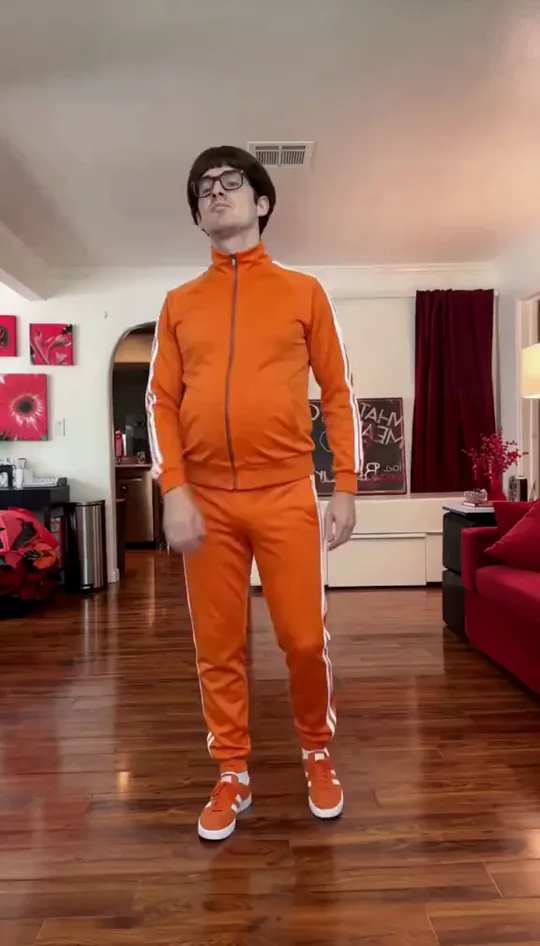
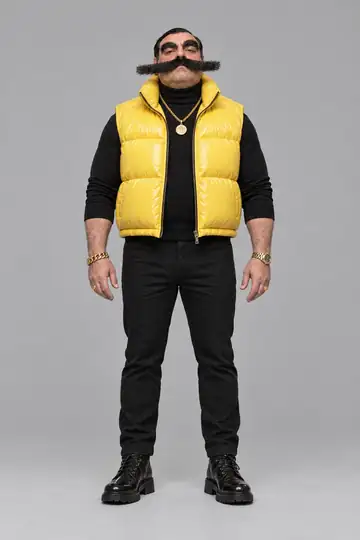
To make a video where you talk to yourself, film both parts and cut between them. Put yourself in the reply as an AI double made from your photos in Duble AI. The app changes your appearance in that one clip and keeps your recorded voice. You assemble the conversation in a video editor, with one version of you on screen at a time.
Set up the two sides of the conversation
Put two chairs across from each other and imagine a line connecting them. Keep the phone on the same side of that line for both angles. Frame your present self on the left, looking toward the right edge of the image. For your future self, frame yourself on the right, looking toward the left edge. Those opposing looks make two solo takes feel like a conversation. Adobe’s shot–reverse shot guide
Tape a mark at eye height near the phone for each setup. Check a short playback to make sure you're looking toward the open side of the frame with your face still visible in three-quarter view. Use the same room and light for both angles. Keep the mic at roughly the same distance from your mouth so the room and voice level stay consistent across the cut.
An 11-second skit with your future self
In this sample script, you have 28 browser tabs open and your future self has come back to find an invoice. Wear a plain tee in the original shots and give your double a cobalt jacket for the reply. Keep the laptop screen out of frame. The audience only needs to see where you look.
| Time in the edit | What to film | Which clip to use |
|---|---|---|
| 0–3 s | Present you. Look down at the laptop, then up toward screen right. “Which tab has the invoice?” | Original recording. |
| 3–8 s | Tomorrow’s you. Look toward screen left. Hold the look for a beat and say, “First tab. I came from tomorrow to tell you.” Let the line finish before you move. | Send this five-second take to Duble AI. Use the double in the cobalt jacket. |
| 8–11 s | Present you. Glance down at the laptop and back up. “Which window?” Hold the look for the cut. | Original recording. Film it before moving the phone to the reply angle. |
Record a little extra at the start and end of each take so you can choose your cuts. Put all three originals on the timeline first. Play them with sound. If the answer comes in too fast or the punch line needs a beat, fix the timing while you can still reshoot. Export just the five-second reply, with its audio, for the swap.
Put your future self in the reply with Duble AI
- Make a double from your own photos. Open the double creator, select My photos and add a clear, front-facing photo. An optional full-body photo helps guide proportions. Confirm permission, generate and save the double once the likeness works for you. The first drawing uses 2 credits. See the photo setup guide.
- Give tomorrow’s you a distinct look. Open New look and enter “plain cobalt jacket, keep the same hair” under What changes. Creating a look uses 2 credits. Once it’s ready, open it and tap Make a video with this look. How to create and select a look
- Upload only the reply. Tap Use your own video, then Choose a video. Upload an MP4 or MOV from 3 to 30 seconds and up to 80 MB. Check that the selected look is the cobalt jacket. Answer How many people are in the video? with Just one. That question refers to the uploaded take.
- Check the quote and tap Generate video. A five-second clip costs 25 credits at Standard or 35 at High. The video quote covers only the uploaded reply. Allow about two to four minutes for the video.
- Replace the middle clip in your editor. Watch the result with sound and check the face and mouth through the whole reply. Use Save video on your phone or Download video on desktop. Insert the generated clip with its audio, remove the original reply from the timeline, and check both cuts. Keep the original file as a fallback.
Fix the cut before spending on another generation
- Both versions look the same way. Check the raw takes. Refilm the offending angle with the eye mark on the correct side. Flipping the clip can reverse the room and any visible lettering.
- The two versions are hard to tell apart. Put “Me today” and “Me tomorrow” on their first appearances in your editor. If the generated clip has the wrong outfit, check the selected look before making it again.
- The reply sounds doubled or starts too early. Solo the generated clip first. If it sounds fine alone, look for the old reply audio on the timeline and remove it. Trim the pause as needed with picture and sound linked. If the source words are wrong, record them again. Duble AI uses the original performance for the reply.
- The mouth or face warps near the end. If the line has already landed, try cutting to the real reaction at that point. If the issue hits mid-line, check the source for a sharp turn or a hand crossing the face. Reshoot with a smaller turn and a clear view of your mouth. More fixes for likeness drift
Likeness and lip sync can vary. A failed generation returns its credits. A completed take with an awkward expression is a result to review before deciding whether to spend on another pass. Use your own recording and photos, and apply the platform’s AI disclosure where required.
Frequently asked questions
- How do I make a video where I talk to myself?
- Play both parts and record them as separate shots. Give each version its own screen position and direction of gaze. In Duble AI, replace yourself in the reply with a double made from your photos, then cut between the original shots and the generated reply in a video editor.
- Can both versions of me appear in the same shot?
- This setup shows one version at a time. Duble AI replaces the visible performer in the clip you submit. To show both versions side by side, plan a separate composite in a video editor, with a locked camera and a clear division between the takes.
- Whose voice will my double have?
- The reply carries the original recording’s audio. Perform the second role’s lines aloud so your delivery and pauses are already in the clip. To change the words or the performance, record a new take before generating the replacement.
- How many credits does a five-second reply use?
- A five-second upload uses 25 credits at Standard or 35 at High. Creating a double from your photos and generating a new look are separate charges. Check the video quote after selecting the file and quality.